VA - Export Report
Description
This custom step exports a Visual Analytics report as a package for the selected report in a compressed (zip) format. The returned content contains the report source files, plus the results of data queries and image rendering, constituting all that is needed for remote viewing of the report or you can export the report as a PDF, SVG or PNG.
The step needs the location and name of the report and a physical location where the export will be stored.
The name of the package, PDF, PNG or SVG will always be the same as the report name with the optional addition of a date, format YYYYMMDD, or timestamp, format YYYYMMDD_HHMMSS.
SAS Viya version support
This custom step is created and tested in Viya 4, Stable 2025.08
Known issue(s)
In case the data on which the report is build upon is not available in CAS, you will get return code 400 while creating a png or svg file.
In case a png or svg file is generated, the result might not be useable/readable.
User interface
Tab: Options
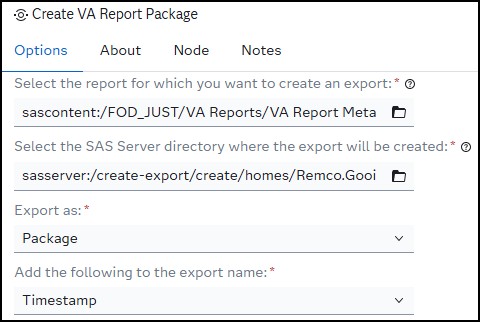
- Select the report for which you want to create an export:: Here you select the report for which you want to create the report package, PDF, PNG or SVG.
- Select the SAS Server directory where the export will be created: Here you need to select a physical directory where the report package, PDF, PNG or SVG file will be stored.
- Export as: NEW in version 2.0. Here you can select the following options:
| # | option | description | comment |
|---|---|---|---|
| 1 | Package | Create a report export package | No additional options become available. This is the default value. |
| 2 | Export the report as a PDF. | Additonal, PDF specific, options become available. | |
| 3 | PNG | Export the report as a png formated picture. | Additional PNG and SVG option becomes available. |
| 4 | SVG | Export the report as a svg formated picture. | Additional PNG and SVG option becomes available. |
- Add the following to the export name: Here you have three choices:
| # | option | desciption | example result |
|---|---|---|---|
| 1 | <Nothing> | This will add nothing to the resulting export name. Note that the default package name is the same as the name of the report. This is the default value | report_name.zip |
| 2 | Date | This will add the current date in format YYYYMMD to the export name. | report_name_20251029.pdf |
| 3 | Timestamp | This will add the current date and time in format YYYYMMDD_HHMMSS to the export name. | report_name_20251029_150530.zip |
NEW in version 2.0:
When selecting 'PDF' from the 'Export as:' drop-down-list, the following PDF specific options become available:
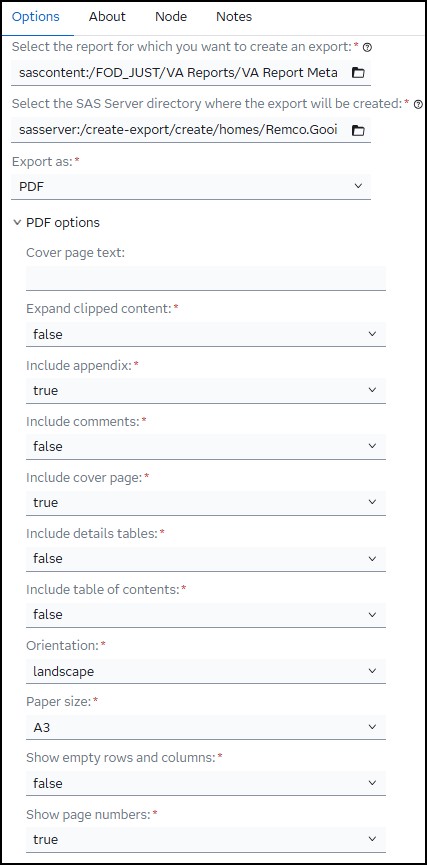
Information on each of the shown options can be found at: Export a PDF of a report.
Note that the default values for each of the options shown are the ones specified in the provided URL.
When selecting 'PNG' or 'SVG' from the 'Export as:' drop-down-list, the following PNG and SVG related option becomes available:
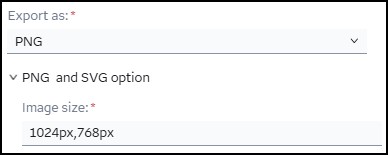
The default value for 'Image size' is 1024px,768px.
For more information, please have a look at PNG and/or SVG.
Tab: About
Usage
Download the .step file, upload it into your environment and start using it by selecting a SAS Visual Analytics report, a physical location to store the package, PDF, SVG or PNG and run your flow or this custom step.
Custom step messages
| # | Step message | Reason | Result |
|---|---|---|---|
| 1 | ERROR: Please select a location on the SAS Server. SAS Content folders are not supported by this custom step | The custom step only supports physical locations on the SAS compute environment | No export has been created. |
| 2 | NOTE: Report export for "&reportName" successfully created. | A note in the log specifying that the report export has been created successfully. | An export with the name of the report, optionally, the date or datetime added to it, is saved in the specified physical location. |
| 3 | ERROR: Report export creation for "&reportName" failed. | The export creation failed. You will see the HTTP return code and the error description in the log file. | No export has been created. |
| 4 | ERROR: The cover page text is too long. (&cptLength characters.) | The cover page text is limited, by the custom step, to 1786 characters. Note that the error message will show the length of the text. | The PDF can't be created. |
| 5 | ERROR: Please enter a valid image size! (Expected pattern: 9999px,9999px Received value: &_size) | You've entered an invalid image size. | No export, PNG or SVG, has been created. |
Change log
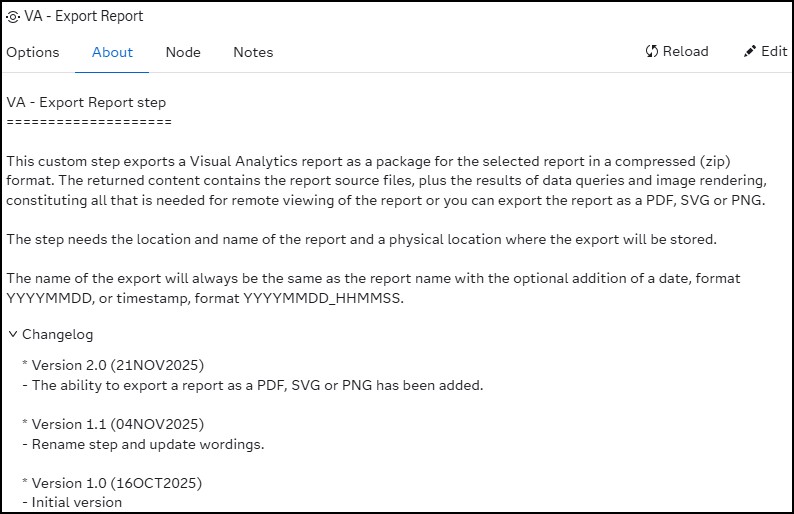
Version 2.0 (21NOV2025): The ability to export a report as a PDF, SVG or PNG has been added.
Version 1.1 (04NOV2025): Rename step and update wordings
Version 1.0 (16OCT2025): Initial version.